Dashboard
The dashboard shows what Sortie is doing now and what it did before: which issues need a person, which agents run, how each issue moves toward a merged pull request, what finished runs used and cost, and whether Sortie itself is healthy. It is a web application served from inside the Sortie binary at /ui/, on the same port as the JSON API and the Prometheus metrics. It needs nothing else installed and loads nothing from other hosts: no CDN, no web fonts, no external services.
Opening the dashboard
Sortie serves the dashboard whenever its HTTP server runs. The default address is http://127.0.0.1:7678/. Sortie answers / with a temporary redirect (302 Found) to /ui/, so either address opens the dashboard.
| Setting | Effect | Default |
|---|---|---|
--port, server.port | TCP port of the HTTP server. --port 0 turns the whole server off: no dashboard, no JSON API, no metrics. | 7678 |
--host, server.host | Bind address. It must be an IP address, and 0.0.0.0 listens on every interface. | 127.0.0.1 |
A flag overrides the matching server key in WORKFLOW.md, and a change to either needs a restart. See the --port and --host flags and the server extension.
Every screen has its own address, so a link to an issue or to a filtered view can be bookmarked and shared, and the browser’s Back button returns to the previous screen or filter.
| Screen | Address | Carried in the address |
|---|---|---|
| Overview | /ui/ | phase and rule filters, the open peek (peek) |
| Pipeline | /ui/pipeline | phase and rule filters, the open peek (peek) |
| Issue page | /ui/issues/<identifier> | |
| Session view | /ui/issues/<identifier>/sessions/<dispatch ID> | |
| History | /ui/history | issue, rule, status, and stage filters |
| Analytics | /ui/analytics | range, and the sort of each breakdown table |
| Health | /ui/health | |
| Workflow | /ui/workflow | |
| Prices | /ui/prices | The sort of the Models table (sort) |
An address under /ui/ that names no screen shows “This page does not exist.” with an Open Overview button.
Security
The HTTP server has no authentication. Anyone who can reach the port can open the dashboard and read every issue Sortie handles, its tracker and pull request links, its run history, the agent events of every retained run, and the workflow configuration in effect. The same visitor can acknowledge attention items, run a scheduled retry now, ask for a pull request check, and queue a tracker poll.
Sortie binds to 127.0.0.1 by default, so only the machine it runs on reaches it. Any deployment that others can reach, including one started with --host 0.0.0.0, must put the port behind a reverse proxy that authenticates or behind a VPN.
The server refuses a dashboard action that a browser sends from a page on another origin, so a web page you have open cannot press these buttons for you. A reverse proxy must pass on the browser’s Host header unchanged, port included; see cross-origin requests.
Layout
Side rail
The rail lists the screens in groups separated by a divider: Overview, Pipeline, History, and Analytics, then Health, Workflow, and Prices. A Filter field above the list narrows it by name, and Enter opens the first match. The rail also shows the Sortie version, the project the workflow tracks, the status card, and these controls: Commands opens the command palette, Shortcuts opens the shortcut sheet, and Theme opens the theme menu.
Overview carries a count badge while items need attention. The badge is amber, and red while any open item is critical.
The project sits on its own line under the Sortie name. It is the value of tracker.project, such as sortie-ai/sortie for a GitHub tracker or a Jira project key, cut to the width of the rail with the whole value on hover. The line is absent while the workflow sets no project. The same project shows in the browser tab, in the narrow bar, and in the Tracker panel of Workflow, so the tabs of different Sortie instances can be told apart.
Status card
The status card sits above the rail’s controls and links to Overview. A dot and a headline give the one condition that applies, and the first row of the table wins when several apply.
| Headline | Applies when |
|---|---|
| Degraded | A health check fails. A line under the headline names the failing checks, such as “Tracker poll failing”. |
| N items need attention | No check fails and at least one attention item is unacknowledged. |
| N acknowledged | No check fails, every attention item is acknowledged, and at least one still stands. The dot is muted. |
| All clear | None of the above. |
A second line under the headline says how many agents run: “No agents running”, “2 of 4 agents running”, or, when only one agent may run at a time, “Agent running” or “Agent idle”. Acknowledging an item removes it from the count of items that need attention, but the card reads N acknowledged rather than All clear while the item stands. It does not clear Degraded, which follows the failing check itself.
Health banner
While a health check fails, a banner under the top bar names each failing check, the time it began failing, and the error it reported, with an Open Health link on every screen except Health. The checks are the WORKFLOW.md reload, the dispatch preflight, the tracker poll, the database check, and, when a source control provider is configured, the reads from that provider.
Top bar
On screens 768 px wide and up, the top bar shows the date and time, or on an issue page or session view a breadcrumb that leads back to the screen the reader came from. At its right it shows the live indicator and a Search or run a command button that opens the command palette. Clock times throughout the dashboard use the browser’s time zone.
Browser tab
The tab title and icon carry the same condition as the status card. The title reads the condition (“All clear”, “Waiting on a person” for N acknowledged, “Needs attention”, or “Degraded”), a hyphen, the tracked project and another hyphen while the workflow sets one, and “Sortie”, with the attention count in parentheses in front of it while any item needs attention. A tab can read “(2) Needs attention - sortie-ai/sortie - Sortie”. Before the first answer the title is “Sortie”. The icon is the Sortie mark, with a yellow dot for Needs attention and a red dot for Degraded. All clear and N acknowledged carry no dot. While live updates are paused, the title and icon stay as they were.
Narrow screens
Below 768 px the rail gives way to a bar at the top of the page with the Sortie name, the tracked project under it while the workflow sets one, the condition (“All clear”, “N acknowledged”, “Needs attention” with its count, or “Degraded”), and a Menu button that opens the command palette, which reaches every screen. The top bar, with its clock and live indicator, is hidden, and so is the station header of Pipeline. The peek takes the full width. Keyboard shortcuts stay available, including P to pause.
Themes
The theme is System (follows the operating system), Light, or Dark. The Theme menu in the rail foot names the current choice and sets it, the T key moves to the next choice in that order, and the palette has one command per choice. The choice is stored in the browser.
Loading and failure states
Before the first answer the page body reads “Loading”. When Sortie does not answer, it reads “Sortie is not answering. The dashboard keeps trying.” A screen that fails to load, which happens in a tab opened before an upgrade, shows “This screen could not be shown.” with Reload and Open Overview buttons.
Overview
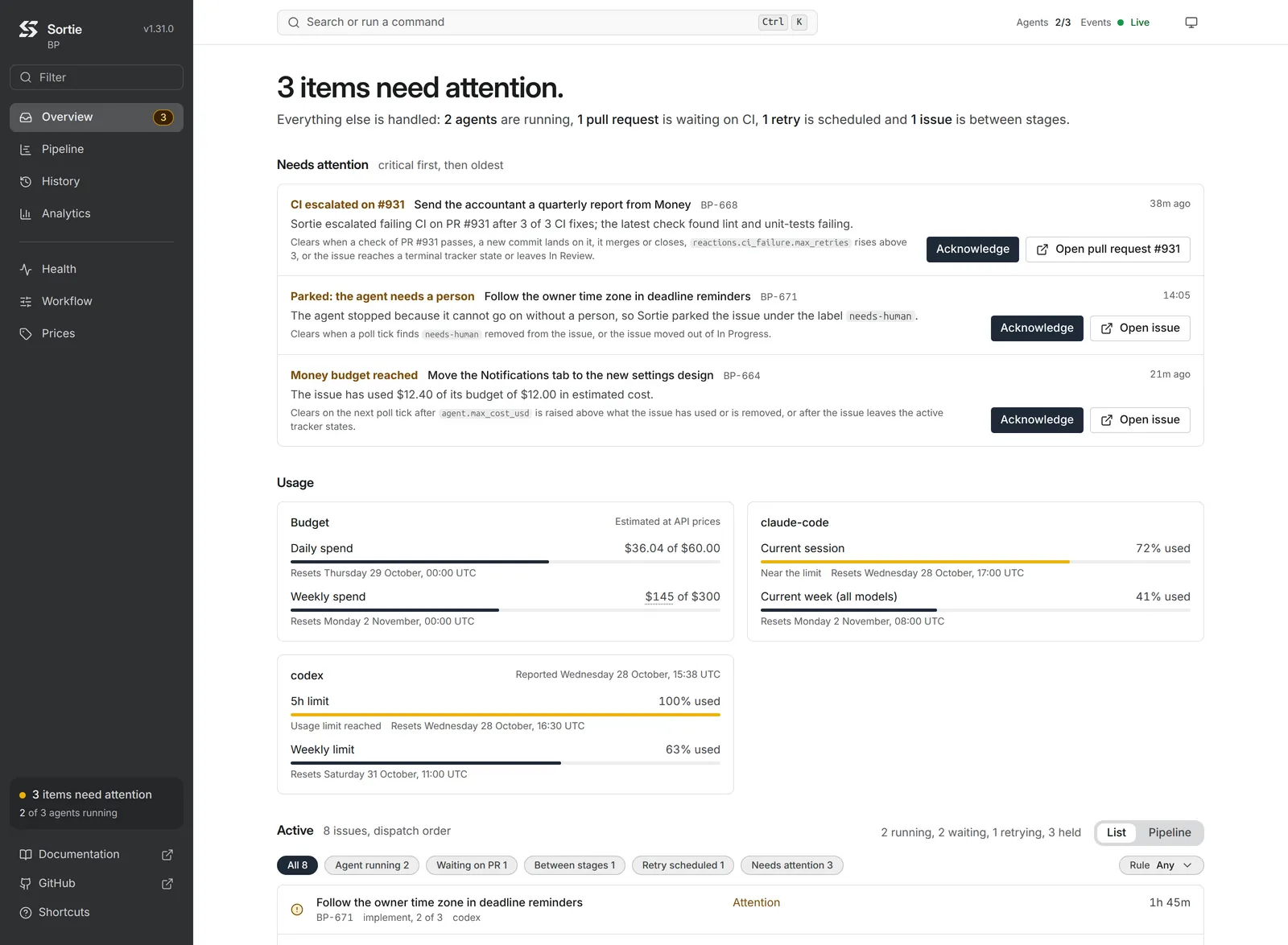
Overview answers: does anything need a person right now? The page opens with a headline sentence and a lede, then the blocks below.
| Headline | Shown when |
|---|---|
| “Sortie is picking up its first issues.” | No run is on record, an agent runs, and nothing needs attention or waits on a person. |
| “Sortie is degraded, and N more items need attention.” or “, and nothing else needs attention.” | A health check fails or a critical item is open. |
| “N items need attention.” | At least one item is unacknowledged. |
| “N acknowledged items wait on a person.” (“1 acknowledged item waits on a person.”) | Every item is acknowledged and at least one still stands. |
| “Nothing needs attention.” | None of the above. |
The lede under the headline says what else Sortie is doing, for example “Everything else is handled: 2 agents are running and 1 pull request is waiting on CI.”. It counts running agents, pull requests waiting on reactions, scheduled retries, issues between stages, and acknowledged items that wait in Active, and reads “No agents are running.” when there is nothing to count. Under “N acknowledged items wait on a person.” the lede leaves the acknowledged items out, because the headline already counts them.
Needs attention lists the unacknowledged attention items, critical first and then oldest. Each item shows its reason in bold, the issue title and key, why the item exists, what clears it, how long it has existed, and its buttons. A click outside the buttons opens the peek of the item’s issue.
While nothing needs attention, a calm line and a row of tiles take the place of the list, unless a health check fails or the first run is still to come. The calm line reads “Nothing is parked, escalated, stopped or waiting on a person, and Sortie is healthy.” It shows only when no acknowledged item stands either; under “N acknowledged items wait on a person.” the tiles show without it. Each tile links to the screen that explains its figure.
| Tile | Shows | Opens |
|---|---|---|
| Agents running | How many agents run, how many more could start under agent.max_concurrent_agents (“2 agents idle”), and the longest running time. With no agent idle the line reads “All agents are running”, or “The agent is running” when the limit is 1. | Pipeline |
| Ended today | How many issues ended today, split into merged, handed off, and done. A workflow with two or more tracker.terminal_states counts the issues that reached a terminal state as closed instead of done. | History |
| Last one ended | When the newest ending happened, how long ago, and the issue title | The issue page |
| Runs finished today | How many runs finished today, split into succeeded and failed | Analytics |
Usage appears while a daily, weekly, or monthly spend ceiling is set or an agent kind has reported a usage limit that has not reset, below Needs attention and above Active. Each part shows only when it has data, and the section is absent when neither does. It holds one card for the budget and one card for each agent kind that reported a limit.
The Budget card appears while a spend ceiling is set. It has one meter for each window that is set, Daily spend, Weekly spend, and Monthly spend, in that order. Each meter reads, for example, “$41.27 of $100.00”. While the spend is a lower bound, the amount is cut and underlined, and its hover reads “Some runs could not be fully priced or measured, so the real cost is higher.” The bar changes color once the spend reaches the ceiling. A line under the meter reads “Resets Friday 27 March, 00:00 UTC”, or “Holding dispatch, resets Friday 27 March, 00:00 UTC” while the window holds dispatch. The windows are UTC days, UTC weeks, which start on Monday at 00:00 UTC, and UTC months, so the reset time is written in UTC, while Ended today and Runs finished today count the day in your browser’s time zone. While several windows have reached their ceiling, dispatch stays held until every one of them clears. When an agent card is also shown, the card carries the note “Estimated at API prices”, because the figures are Sortie’s estimate and not the plan the agent bills against. See how to control agent costs.
An agent card is titled with the agent kind and appears for each kind the workflow can dispatch to, in alphabetical order, once that kind has reported a usage limit. It holds one entry per limit the agent reported, for example “5-hour limit” or “Weekly limit”. An entry reads as a meter when the agent reported an amount, as “7.08 of 1,000 credits”, or a share, as the percentage used, and as the label with a status word, “Under the limit”, “Near the limit”, or “Usage limit reached”, when it reported neither (“Status not reported” when it reported no status either). A line under the entry reads “Resets” with the time in UTC, or “Reset time not reported”. A near or reached limit that has a meter also puts its status word at the start of that line. A limit stops showing once its reset time has passed, and a card whose limits have all reset is hidden. A card shows “Reported” with a time while its newest report is an hour old or older, and so does a single entry whose report is that old and differs from the card’s. The limits are the rate_limits member of GET /api/v1/state. Sortie holds them in memory, so none shows after a restart until the agent reports again.
Active lists every issue Sortie is working on or waiting for, in the order Sortie picked the issues up. Beside the heading it shows the issue count and a tally such as “2 retrying, 1 held”, and a List and Pipeline switch that moves between this block and the Pipeline screen with the filters kept. Lifecycle chips filter the list, and the Rule menu filters by dispatch rule or stage.
| Chip | Issues in it |
|---|---|
| Agent running | An agent session is running. |
| Waiting on PR | Sortie watches the pull request for a reaction, and no reaction has escalated. |
| Between stages | A stage hop moved the issue to the next stage and that stage has not started. |
| Retry scheduled | A retry waits for its due time. |
| Needs attention | The issue is parked, held by a budget, or has an escalated reaction. |
A chip shows only while it has issues, and the whole row of chips shows only while more than one lifecycle is present. The Rule menu shows only when the workflow has dispatch rules. It lists the rules, grouped by stage chain, with a count each, and it has a search field. A filter that leaves nothing reads “No active issue matches these filters.” with a Show all button.
Each row shows the issue’s mark and status word, the issue title, a second line with the key, the rule (or the stage and its place in the chain, such as “implement, 2 of 3”), and the agent kind, and a time. The time counts down to the due time for a retry and counts up from the start of the current state for every other row. A row of an issue between stages whose hold is recorded adds a line under the second line with the reason, for example “Waiting to confirm the stage move”. A click opens the peek, which carries Sortie’s sentence about the issue.
Not dispatched lists the issues Sortie could start but holds back, below Active and above Ended today. The block shows only while at least one issue is held, and beside its heading it shows the issue count. Each item shows the issue title and key, why Sortie holds the issue back, what releases the hold, and how long ago the hold began, written as a time of day from one hour on. Open issue opens the issue in the tracker in a new tab; a click on the item opens no peek. The reasons are an open blocker with its key and state, blockers Sortie could not read, has not read yet, or got only in part, a full agent slot limit with its usage, no free SSH host, a spend ceiling, an agent provider’s usage limit, and comments Sortie could not yet read for an issue a person released from a park. The HTTP API reference lists every reason with its wording. A spend ceiling and a usage limit each add the time left until the window resets, as in “Usage limit reached for claude-code, resets in 3h 20m”, and release when it passes. A usage limit that stops one model of an agent kind alone names the model, as in “Usage limit reached for sonnet on claude-code”; issues routed to other agents or models keep dispatching. The list is empty after a restart until the first poll tick has run.
A held issue is not in Active, and it adds no attention item, no mark, and nothing to the headline or the lede. A spend ceiling keeps its own item under Needs attention. The Held status word of Active is a different thing: it marks an issue whose attention items are all acknowledged.
Ended today lists the issues that ended today and that Sortie no longer holds, newest ending first, each with its mark, its ending word, such as “Done”, “Review”, or “Merged”, and the time. Beside the heading a tally line lists, for example, 2 issues ended, 23 runs finished, 7 succeeded, 16 failed, and 48.03M tokens, plus stopped and cancelled counts when there are any and an estimated cost, such as “$12.40 estimated”, when a rate source is available. A token total or cost that is a lower bound is cut and underlined, with the hover “Some runs were not measured or not fully counted, so the real figure is higher.” on the tokens and “Some runs could not be fully priced or measured, so the real cost is higher.” on the cost. Without a figure the tally reads “tokens N/A” or “cost N/A” (see N/A), “tokens not recorded”, or “cost unpriced”, whose hover reads “The configured rates leave these runs unpriced.” A History link follows. The tally reads “No run finished today.” when none did, and it is absent before the first run and while run history is unavailable (“Run history is not available.”).
Status word and mark
Active, the lanes of Pipeline, the issue headers of History, and the Issues group of the command palette give each issue one word for where it stands. Every list except the palette draws the same mark beside the word. Ended today uses the ending word of the issue.
| Word | Mark | The issue |
|---|---|---|
| Running | Filled circle | Has an agent session running. |
| Waiting | Dashed circle | Waits on a pull request reaction, or sits between stages. |
| Approval | Dashed circle | Has a pull request that waits only on a required approval. The hover on the mark reads “Waiting on approval”. |
| Retry | Empty circle with a heavy outline | Has a retry scheduled. |
| Attention | Circle with an exclamation point | Has an attention item that nobody acknowledged. |
| Held | Dashed circle in a muted color | Has attention items, and all are acknowledged. |
| The merged or terminal ending: “Merged”, or the tracker state with a capital first letter, such as “Done” | Circle with a dot inside | Ended without a handoff to a person. |
| The handoff ending: the state Sortie moved the issue to, with a capital first letter, such as “Review” | Dashed circle | Ended with a handoff to a person. |
Approval replaces Waiting only for a pull request whose review reaction found no comment to answer and whose forge reports that a required approval is still missing. A standing escalation outranks it, and an issue whose pull request has comments to answer reads Waiting. An unacknowledged attention item outranks an acknowledged one, and both outrank the state the issue is in. An ended issue whose ending Sortie did not record reads “Ended” with no mark.
Run outcome words
A finished run carries its own word wherever it is listed: the run cards and chapter lines of the issue page, the So far list of the peek, the head and the Sessions panel of the session view, the status column of History, and the sessions in the command palette. The word is the run’s recorded status: Succeeded (check mark), Failed and CI failed (cross), Needed input, Stopped at a budget, and Usage limit reached (paused circle in the attention color), or Cancelled (no mark).
A run recorded as succeeded reads differently when its agent ended the session by declaring an outcome in the .sortie/status file.
| Word | Mark | The agent declared |
|---|---|---|
| Action required | Paused circle in the attention color | blocked: it cannot go on without a person. |
| Ready for human review | Right arrow | needs-human-review: its work waits for a person to look at it. |
| No change needed | Check mark | no-change-needed: the requested outcome already held, so there was nothing to change. |
A run with no declared outcome reads Succeeded, and so does a run recorded before Sortie kept declared outcomes. Any recorded status other than succeeded keeps its own word, so a needs-human-review run whose handoff Sortie withheld reads Failed. The Run status filter of History and the figures of Analytics follow the recorded status, so a run that reads Action required still counts as succeeded there.
The sentence the agent wrote after the status word shows beside the outcome, in curly quotes that mark it as the agent’s own: in the run card on the issue page, in a note under the facts line of the session view, and as the hover on the status cell in History. The other places show the outcome word alone. A run that declared nothing, or wrote no sentence, shows no quotation. The HTTP API serves the same outcome and sentence with each run.
Pipeline
Pipeline answers: where does each issue stand on its way from the tracker to the end of its pull request? It shows the same active issues as Overview, plus the issues that ended today, each as a lane across the stations of the workflow.
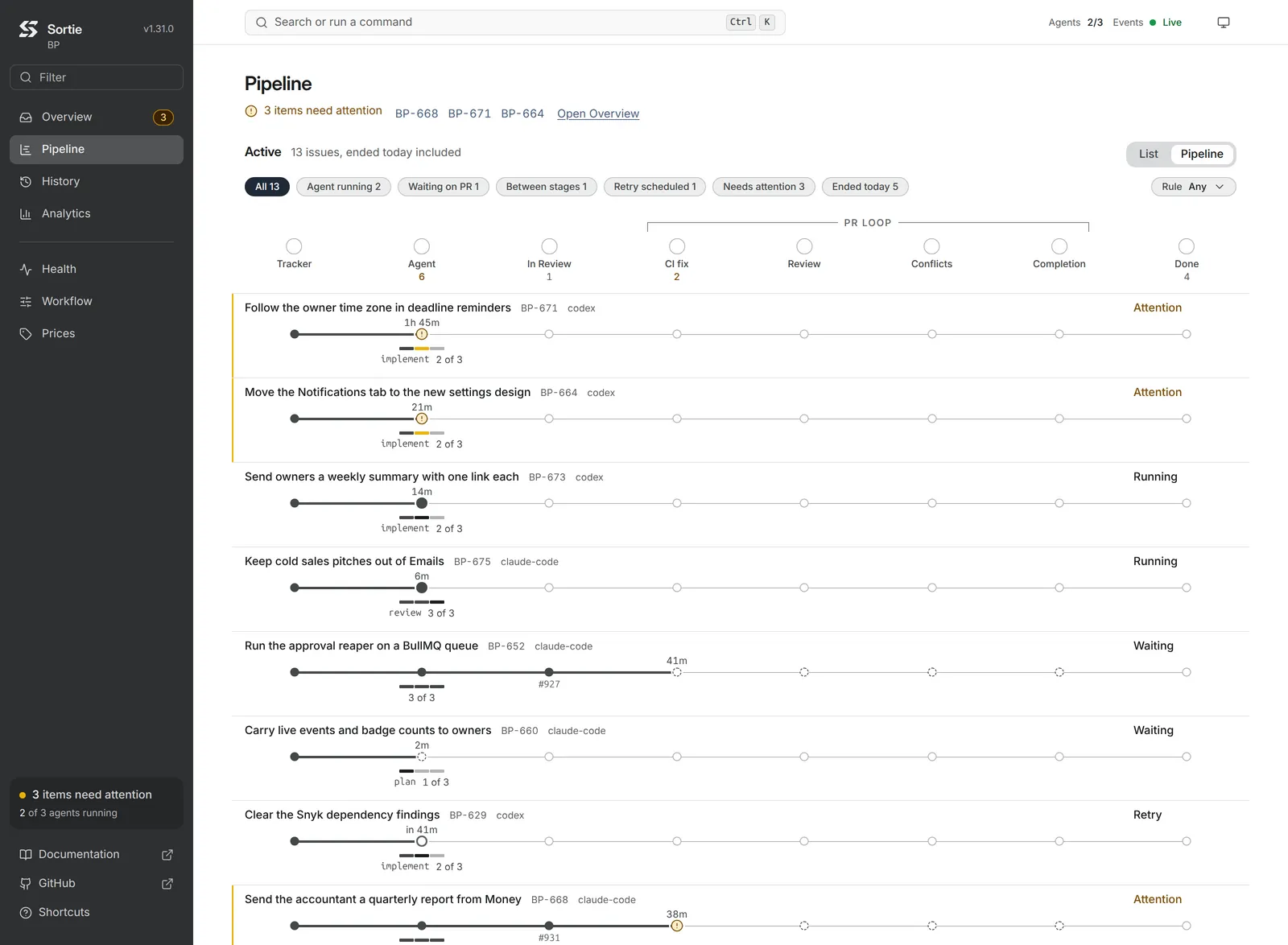
A line above the lanes names how many items need attention, links each affected issue, and links Open Overview. The Active header, the lifecycle chips, and the Rule menu work as on Overview, and the chips add Ended today.
The stations are fixed by the configuration, never by an issue, and they read left to right:
| Station | Present when |
|---|---|
| Tracker | Always. |
| Agent | Always. All agent work sits here, whichever stage the issue is on. |
| The handoff state, named as the tracker names it | tracker.handoff_state is set. |
| One station per configured pull request reaction: CI fix, Review, Bot review, Conflicts, Merge, Merge completion, Label commands | The matching reaction is configured. |
| End, or the name of the terminal state | Any reaction is configured. The station takes the name of the terminal state when tracker.terminal_states lists exactly one and every merge Sortie records moves the issue into it, which holds without auto_merge or with merge_completion. In a workflow with two or more terminal states, the station header reads End, and the lane of an ended issue names the station after the state the issue reached, with a capital first letter, or Merged. On the issue page and the peek the same lane follows the same rule. |
A bracket labeled “PR loop” spans the reaction stations. The station header above the lanes writes the count of lanes standing at each station under its name, in the attention color while one of those lanes needs attention. Each lane shows the issue title, key, route, and agent, its status word, and the track with the issue’s mark at its station and the time above it. On an issue in a stage chain, a stage meter under the Agent station shows the stage and its place in the chain, such as “implement 2 of 3”, while the issue stands at the agent. Elsewhere the meter shows how many stages are done.
The heavy line of the track runs on through every reaction station the issue worked in its current pass, not only to the station it stands at. A bot review whose triage command answered handled holds no station: its issue stands at the handoff station (or at Agent when the workflow has no handoff state) until the bot review’s comments change, also after a restart, and the station header counts it there. The issue reads Waiting wherever the status word shows, and Sortie’s sentence reads “The triage command handled the bot review of PR #N, so Sortie starts no session for it”, followed by the time of the next check. The Bot review station counts a handled triage as Sortie having acted. A pull request that waits only on a required approval stands at the Review station, marked with a dashed circle and read as Approval; a workflow without the review_comments reaction never shows this state.
A reaction station that the issue is not standing at reads from what the reaction did during the issue’s current pass. Hovering the station names the reading and, where the reaction counts its work, the count.
| Mark on the station | Hover | Meaning |
|---|---|---|
| Dashed circle | “waiting” | A reaction is pending there now. |
| Dashed circle | “waiting on approval” | The Review reaction is pending, found no comment to answer, and the pull request still needs a required approval. |
| Circle filled with the attention color | “needs attention” | A reaction is pending there with an escalation standing. |
| Filled circle | “Sortie acted” | The reaction started work. On lanes and the issue page the station adds a count, such as “2 fixes” (or “runs” for label commands), for the reactions that count their work. |
| Filled circle | “nothing to act on” | Sortie watched the reaction and found nothing to act on. |
| Filled circle | “escalated” | The reaction escalated during the pass, and no escalation stands now. |
| Empty circle | None | Sortie has no record of the reaction in this pass. It does not mean the reaction did not run. |
A legend under the lanes explains every mark in use. With more than 24 lanes the lanes compress to a dense form without counts or meter captions, and, while no lifecycle chip or rule is chosen, they group by station: one line per station lists the issue keys and expands with Show lanes and Hide lanes. A click on a lane opens the peek.
Issue peek
The peek is a drawer that shows one issue over Overview or Pipeline without leaving the list. It opens from a click on a row or lane, or from Space on the selected row, and it has its own address, so it can be shared. While it is open the list holds still, and the live indicator reads “Holding still while you read”. J and K move the peek to the neighboring issue, and Esc, Space, the Close button, or the browser’s Back button close it. Open page opens the issue page.
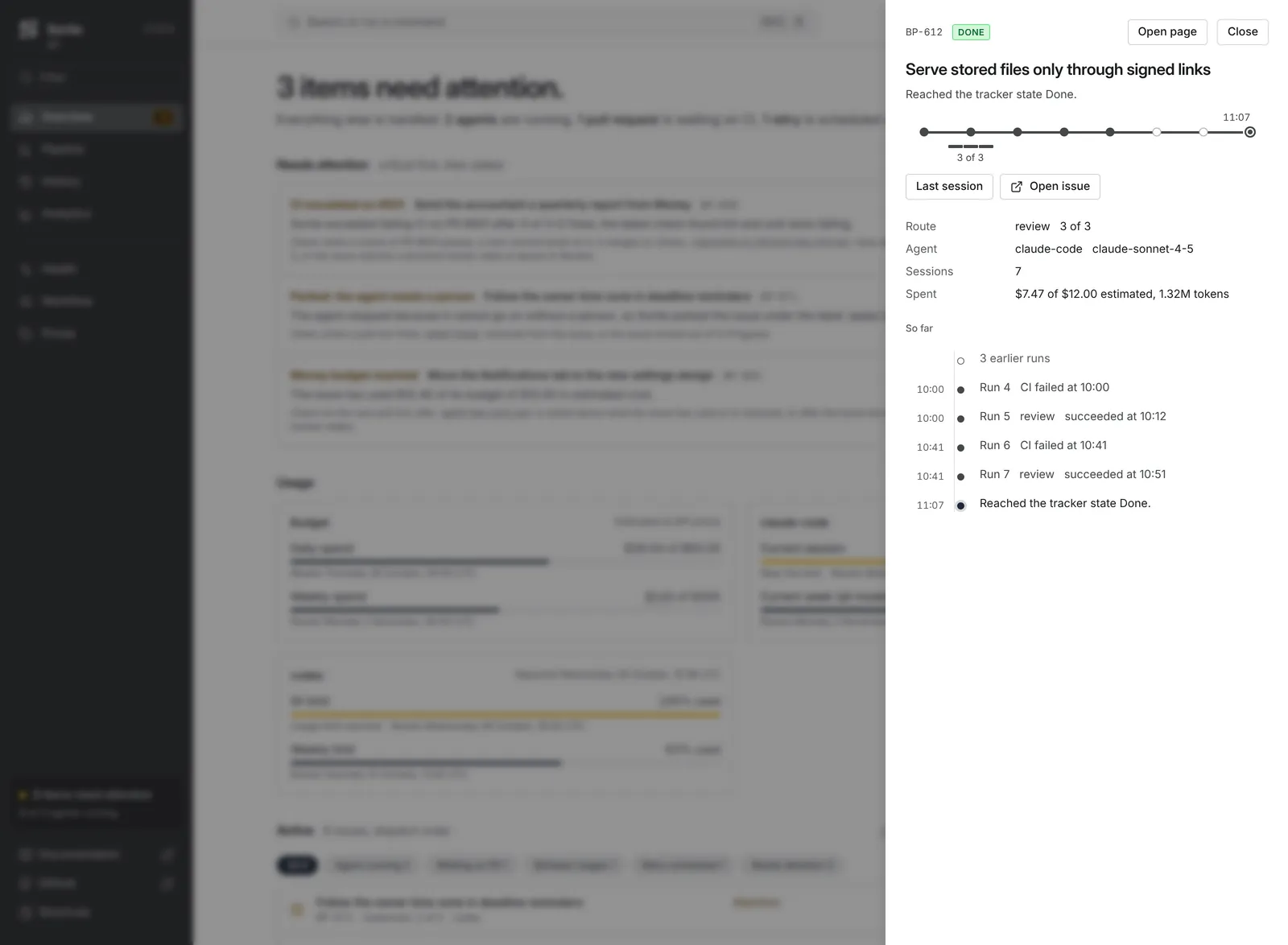
| Part | Contents |
|---|---|
| Head | The issue key and its tracker state, Open page, and Close. |
| Summary | The issue title, Sortie’s sentence about it, and its lane. |
| Buttons | Acknowledge for each open attention item, Open live session or Last session, Open issue (the tracker page), and the pull request button, such as PR #1331. |
| Facts | Route (the rule or stage and its place in the chain), Agent (kind and model), This session while one runs (turn, tokens, and estimated cost), Sessions, Tokens or Spent, and Pull request with its branch. Spent reads the cost and the tokens, such as “$12.40 estimated, 1.2M tokens”, and the cost against the money limit, such as “$12.40 of $25.00 estimated, 1.2M tokens”, while agent.max_cost_usd is set. A cost or token figure that is a lower bound is cut and underlined, as in How figures are written. |
| What happens next | What Sortie will do under each condition, such as “When retry 7 comes due”. |
| So far | The last runs of the issue with their outcome words, and a closing line with the issue’s current sentence, timed at the moment the issue ended once it has ended. |
An issue Sortie no longer knows reads “Sortie no longer knows” followed by its key. Showing an issue, in the peek or on its page, marks its ending as read.
Issue page
The issue page answers: what happened to this issue, what happens next, and what has it cost? It opens from the peek, from History, from the palette, and from the Overview tiles, and Esc returns to the screen it was opened from.
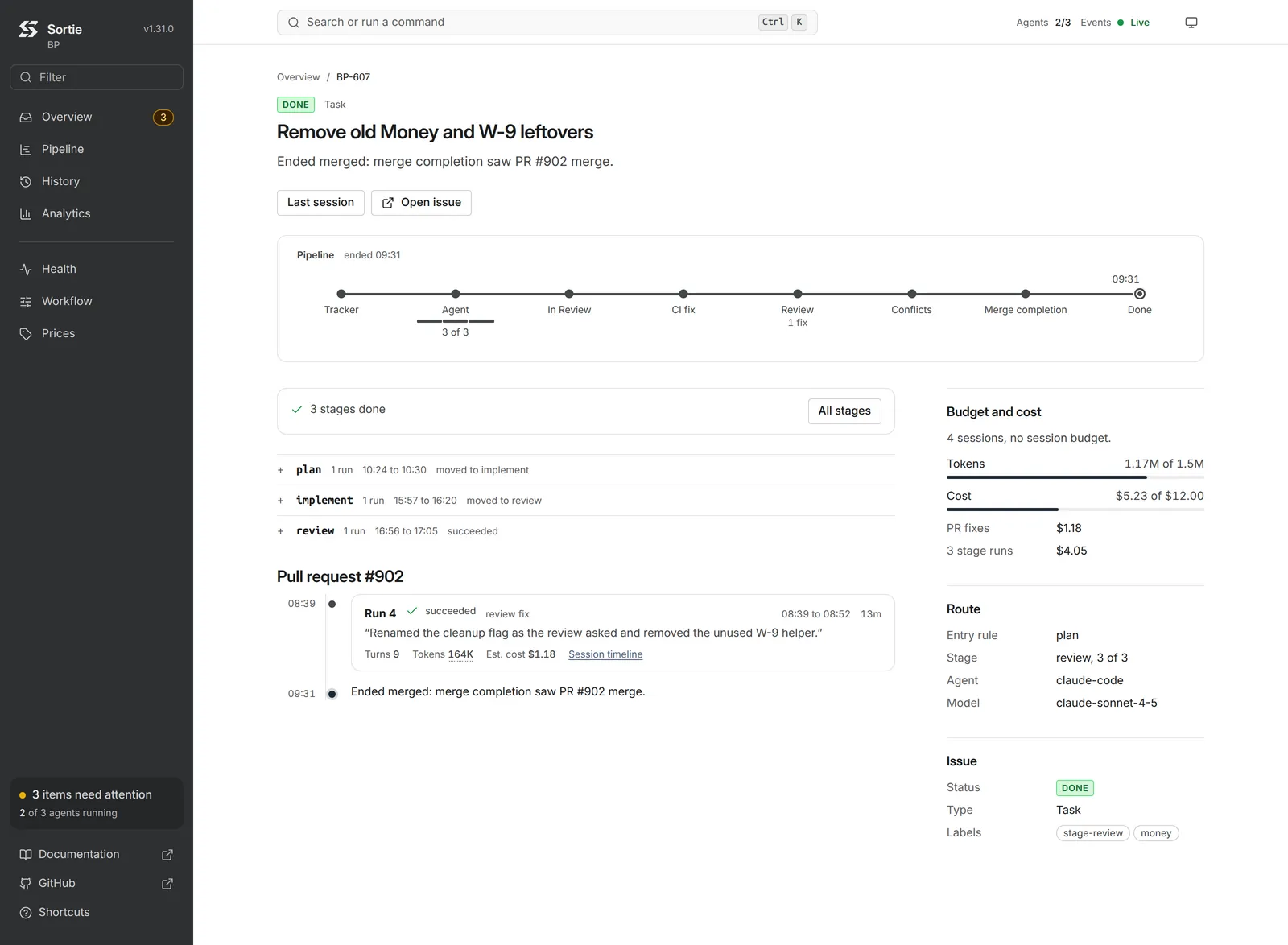
The page opens with the issue’s tracker state and type, its title, Sortie’s sentence about it, and, for a running issue whose agent has been quiet, a stall notice. Buttons follow: Open live session or Last session, Open issue, and the pull request button. Under them a Pipeline card draws the issue’s lane with the station names, with the stage meter and, at reaction stations, the counts. From 1280 px wide the story sits beside a margin of panels. Below that the margin follows the story.
The story is the issue’s history, newest at the bottom, grouped into chapters.
- Each stage of a chain is a chapter named after its rule, and a stage that ran again reads “again”. Work on the pull request, such as CI fixes and review fixes, forms chapters named “Pull request” with its number. Work outside a stage chain forms chapters named “Work”.
- An issue in a stage chain opens with a summary of the stages done, the current stage with its place, such as “implement (2 of 3)”, and the stages ahead. Its All stages button lists every stage with its time span. A stage that did not hop to the next reads “hop to” the target “not made” with the reason in plain words: the next stage’s label could not be added, or the limit on automatic hops in a row was reached. Elsewhere a hop reads the same way, such as “moved to implement”.
- Every chapter but the current one is folded to one line with its run count, time span, and outcome. Unless the last run made or missed a hop, the outcome is its outcome word with its first letter in lower case, such as “action required”. An acronym keeps its capitals, as in “CI failed”.
- Each run is a card with its number, its outcome word, what started it (“CI fix”, “Retry after an error”, “Continuation”, and so on), its time span and duration, its error when it failed, the sentence its agent wrote with a declared outcome, its turns when it completed any, its tokens, its estimated cost when a rate source is available, and a Session timeline link to the session view. The tokens and cost of a finished run read as in the Tokens and Est. cost columns of History, hovers included. The tokens of a running session read “not measured” until its agent reports usage, and its cost is left out until then. A CI failure that Sortie recorded is not a run card, since no agent ran: it is one line in the story, “CI checks failed”, with its time.
- The current chapter closes on Sortie’s sentence about the issue, timed at the moment the issue ended once it has, and at the current time while it is active. When older runs are not loaded, a line says how many are not listed, and Show older runs loads them.
The margin holds these panels, each only when it applies.
| Panel | Contents |
|---|---|
| Attention cards | Each item of the issue: reason, why, what clears it, Open issue or Open pull request, and Acknowledge, or “Acknowledged” with the time. |
| Retry N | While the issue waits for a retry: when it is Due, what it was Started by, the Error, and Retry now. A retry that waits for a provider usage limit to reset shows Waiting for “the usage limit to reset” beside Due, in place of Started by and Error. |
| What happens next | The conditions and what Sortie does under each. |
| Pull request #N | The repository, branch, and head commit, then one line per watched reaction with its state, the time of its next check, how many fixes it has used of its limit, and Check now. A reaction’s state reads “fixing”, “checks failing”, “checks passing”, “comments arriving”, “handled”, “comments to answer”, “waiting on approval”, “conflict”, “waiting”, or “escalated”. “Comments to answer” means the last check found comments the reaction has yet to act on; “handled” means the triage command of a bot review answered handled for its current comments, so Sortie starts no session for them; “waiting on approval” means the Review reaction found no comment to answer and the pull request still needs a required approval. A reaction with comments to answer never reads “waiting on approval”, and “handled” outranks “comments to answer”. |
| Budget or Budget and cost | Meters for Sessions and Tokens against the issue’s limits, “No token budget” when none is set, and, when a rate source is available, the Estimated cost with its share for pull request fixes and for stage runs or the rule. The Estimated cost of an issue with no running session reads as the cost in the issue’s History header, hovers included. A share reads “unpriced” when its runs were measured but no rate priced them, and the priced amount as a lower bound when another run in it was unpriced, not measured, or not fully counted; it reads “not measured” only when no run in it was measured. While agent.max_cost_usd is set and a rate source is available, a Cost meter against that limit stands in for the Estimated cost figure and reads “$12.40 of $25.00”. A Tokens or Cost meter whose used amount is a lower bound cuts that amount and underlines it. |
| Route or Agent | Entry rule, Stage (with its place in the chain), Agent (the agent kind), and Model, which reads “agent default” when no model is named. |
| Issue | Status, Type, and Labels. For a running issue, Status and Labels follow the tracker: they change right after Sortie moves the issue to tracker.in_progress_state and again on every poll tick, so a label added during the run shows within one tick. The state badge in the head of the issue page and of the peek follows the same reading. |
A failed read of run history shows “Run history could not be read.” above the story. An issue Sortie no longer knows reads “Sortie no longer knows” followed by its key.
Session view
The session view answers: what is this agent doing, or what did it do? It shows one agent session of one issue, live while the session runs and from the stored events once it ends. It opens from a run card, from the Open live session and Last session buttons, from O, and from the palette. Esc returns to the issue page.
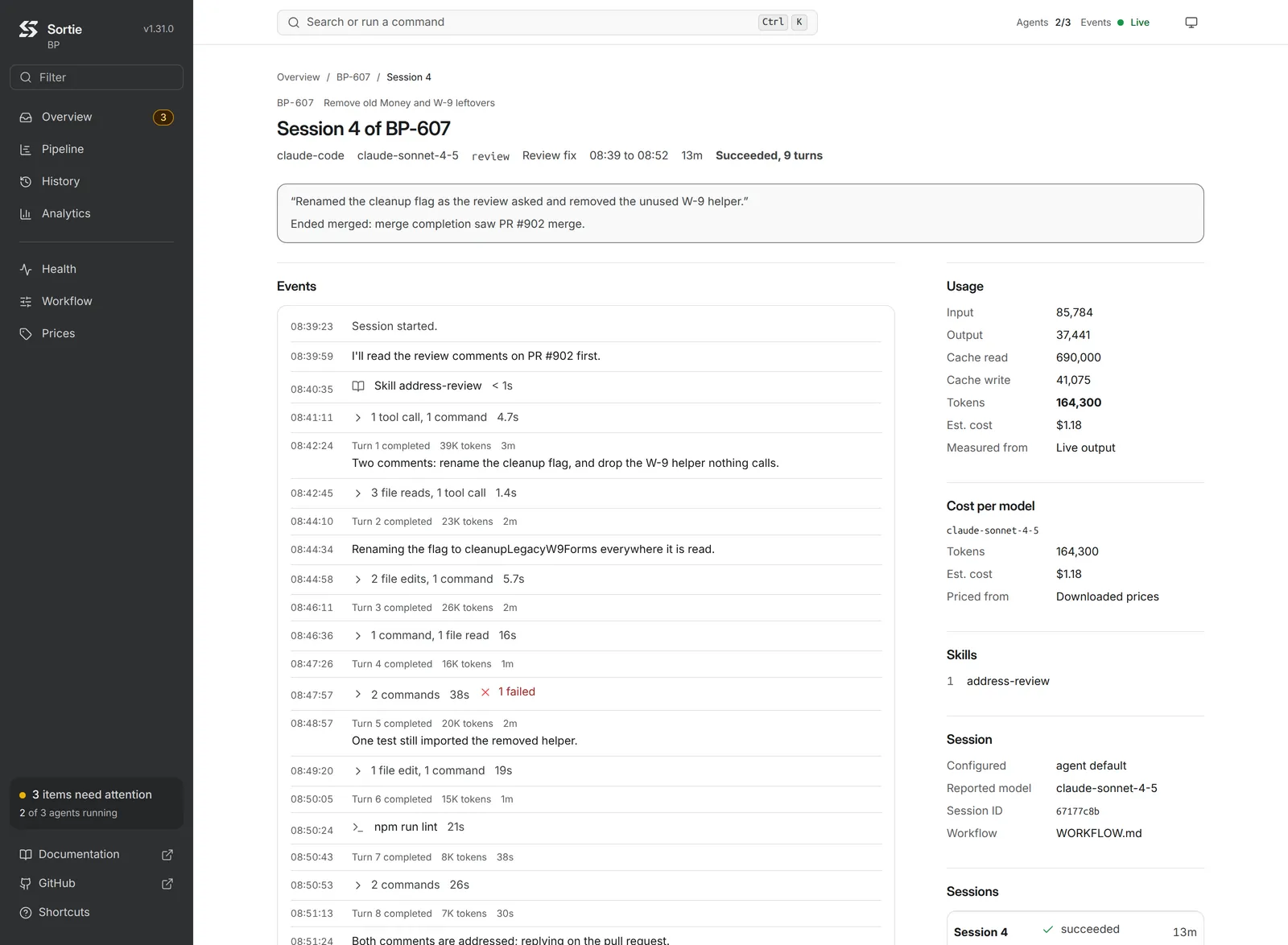
The page head shows the issue key and title, the heading “Session N of” the key, and a line of facts: agent kind, model, route, the reaction that started the session when a pull request fix did, the SSH host when one is used, its time span and duration, and its status, such as “Running, turn 3 of 20”, “Succeeded, 4 turns”, or “Action required, 4 turns”, with no turn count while the run completed no turn (see run outcome words). A running session whose agent has sent no event for longer than usual shows a stall notice, and a running session with no stall timeout shows a notice that stall detection is off. A finished session shows a note under the facts line, alarmed only when the run failed. It gives the error when the run recorded one, then the sentence the agent wrote with a declared outcome in curly quotes, then, for the newest session of an issue that has nothing running, the sentence the issue page shows for what happens next. The status in the head is not repeated in the note.
Events is a scrolling pane with one line per event. Every tool call is one line: an icon for its kind (a terminal for a shell command, a file for a read, a file with a pencil for an edit, an open book for a skill, a wrench for any other tool), the call itself, and its duration when the agent reports one. The call reads as follows, with secrets masked.
| Call | The line shows |
|---|---|
| Shell command | The command alone. |
| File read or edit | The tool and the file, with the path relative to the workspace. |
| Skill | The tool and the name of the skill. |
| Any other tool | The tool’s name. An MCP tool reads as its server and tool, such as “github.get_issue”. |
A line too long for the pane is cut at the pane’s width, and hovering it shows the whole text. A failed call draws its line inside the failed mark.
Two or more consecutive tool calls fold into one line that counts them by kind, in the order the kinds first appear: “3 commands, 2 file reads”, with “file edit” for an edit and “tool call” for every other tool, such as “4 tool calls”. After the counts the line shows the total duration of the calls that report one and, when any call failed, “N failed” in the failed mark. A click expands the line into the calls it holds. A single call between other events is a line of its own, and a skill call is never folded: it stands alone and ends the fold before it, so the skills of a run read in order among the events. A turn that ended reads “Turn N completed” with its tokens and duration. Events the dashboard no longer holds read as a count of events not retained, and a run with none reads “No events retained”. The pane keeps the newest 1,000 events of the run. When a failed turn closes a finished session, its line reads the run’s outcome word with that word’s mark, so a session that stopped at a usage limit shows the paused circle, not a cross. The foot line counts the events.
A live session follows its newest event until the reader scrolls up. Then a Jump to latest button appears, with a count of new events, and the foot line reads “Live” with the time of the last event, and “following new events” while the pane follows. Pausing live updates holds the pane still and the foot line reads “Paused”.
| Panel | Contents |
|---|---|
| Tokens per turn | A bar for each completed turn whose tokens are known, and for a live session whose agent reports usage as it happens, a bar for the turn in progress. A turn that ended without usage is listed in Events but has no bar. The panel appears once two completed turns have bars. |
| Usage | Input, Output, Cache read, Cache write, Tokens (“so far” while live), and Est. cost. A live session whose agent has reported no usage shows Tokens “not measured” in place of the token classes. A finished session adds Measured from, one line for each way Sortie measured the run, such as “Live protocol”, “Live output”, or “Saved session files”, and Agent reported, one line per unit for the amounts the agent reported in its own unit, such as “7.08 credits”. Measured from reads “not recorded” for a run recorded before Sortie kept where a figure came from. A finished session with no token figure shows Tokens “N/A” in place of the token classes, with its reason on hover. A Tokens figure that is a lower bound is underlined, with the hover “Some turns were not fully counted, so the real figure is higher. It will not be corrected later.” The Est. cost of a finished session is its cost in US dollars only, worded as in the Est. cost column of History. |
| Cost per model | One block for each model a finished session spent tokens on: the model name (“Model not reported” when the agent named none), its Tokens without cache reads, its Est. cost, and Priced from, the source of its price: Custom prices, Downloaded prices, Built-in prices, or Agent-reported for a model that no price table lists and that Sortie priced from the US dollar amount the agent reported. Priced from reads “not recorded” for a run recorded before Sortie kept it, and is absent for a model with no cost. A model with a token class that had no rate reads its cost as a lower bound, and the hover names the classes, as in “claude-sonnet-4-5 has no price for cache reads and cache writes, so the real cost is higher. A price you add counts for future runs only.” Absent on a live session and on a finished one that recorded no spend by model. |
| Skills | Every skill call of the run in the order the calls finished, each under its position, with a repeated skill listed each time. The name is cut at the panel’s width and shows in full on hover, and a failed call sits in the failed mark. The panel shows while the session runs and after it ends, and it lists the whole run even when the oldest events are no longer held. It is absent while the run has called no skill, for an agent kind that reports none (the Claude Code, Copilot CLI, and OpenCode kinds report them), and for a run recorded before Sortie kept the list. |
| Session | Configured model (“agent default” when none), Reported model, Host for SSH, Workspace while live, Session ID, Workflow, and Stall timeout while live. |
| Sessions | Every session of the issue, newest first, each linking to its view with its outcome word, when the issue has more than one. Show older loads earlier ones. |
An address that names no session reads “No such session”. The HTTP API describes which events Sortie keeps and for how long.
History
History answers: what finished, how did it end, and what did it use? It lists finished runs grouped by issue, the issue with the newest ending first, 20 issues at a time. Show more issues loads the next 20.
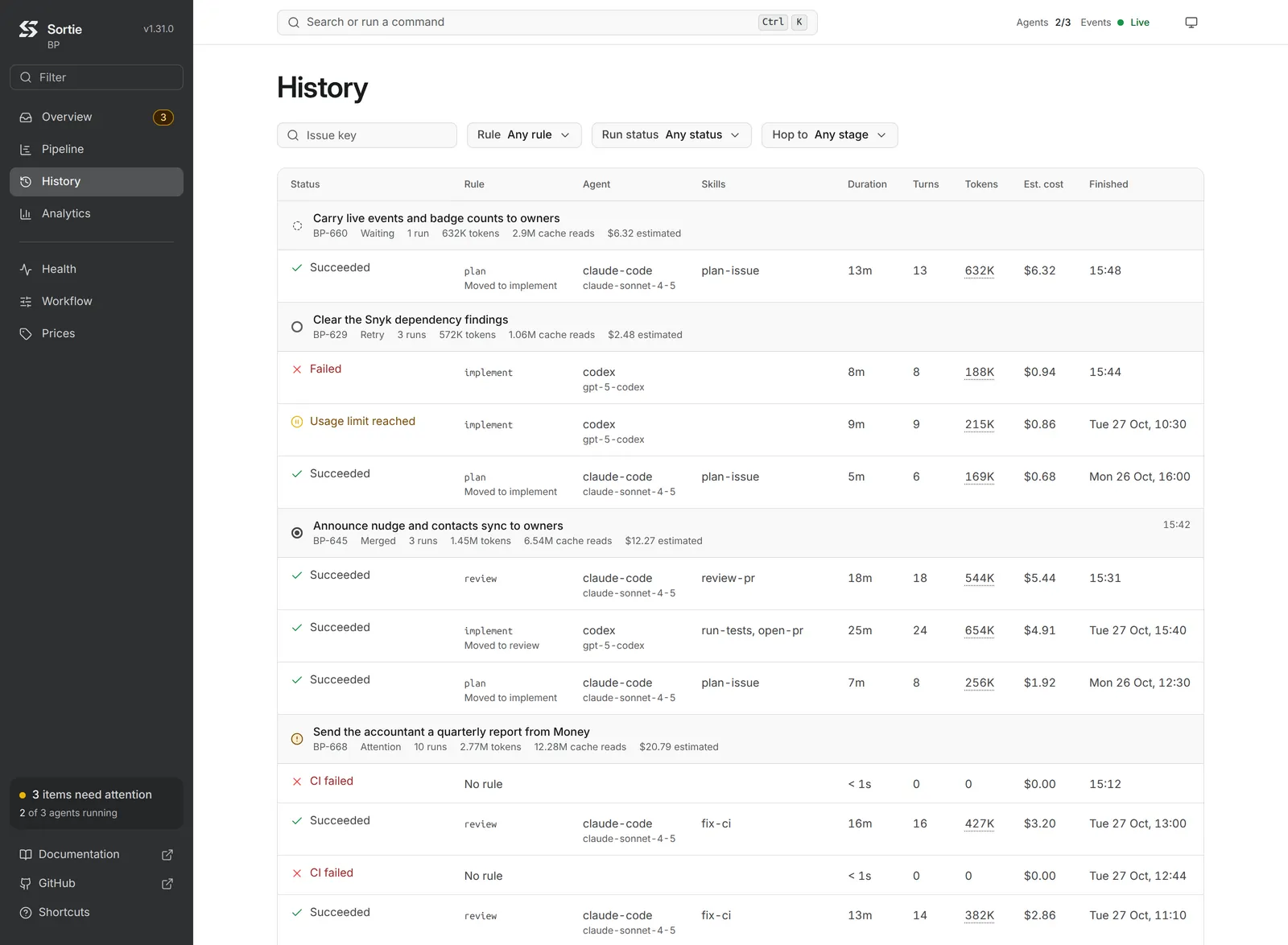
Filters sit above the table, and each is part of the address.
| Filter | Matches |
|---|---|
| Issue key | An issue whose identifier or display key equals the text exactly, case included. Enter applies it. |
| Rule | Runs of one dispatch rule, of dispatch.default, or of no rule. Shown when the workflow has dispatch rules. |
| Run status | Succeeded, Failed, CI failed, Needed input, Stopped at a budget, Usage limit reached, or Cancelled. |
| Hop to | Runs that hopped to one stage. Shown when the workflow has stage chains. |
Each issue is a header row and its newest runs beneath it. The header shows the issue’s mark, the issue title linking to the issue page, and a second line with the key, the issue’s status word, its run count, its tokens, its cache reads when it has any, its estimated cost when a rate source is available, and the amounts its agents reported in their own unit, one per unit, such as “7.08 credits”. At the right it shows when the issue ended. The tokens and cost of the header are totals of the issue’s runs: a total that is a lower bound is cut and underlined, a total without a figure reads “tokens N/A”, “cost N/A”, or “cost unpriced”, and a cost that holds an agent-reported US dollar amount carries a hover that gives the exact cost and the share the agent reported, as in “$4.20. $1.10 of it is the amount the agent reported for acme-coder-1, which no price table lists.” Show more runs loads the issue’s earlier runs.
| Column | Shows |
|---|---|
| Status | The run’s outcome word with its mark. Hovering shows the sentence the agent wrote with a declared outcome, else the error the run recorded. |
| Rule | The dispatch rule, with the hop the run made, such as “Moved to make-pr”. Shown when the workflow has rules. |
| Agent | The agent kind and the model. The tooltip names the configured model when the agent reported another. |
| Skills | The skills the run called, in call order, separated by commas, repeats included. A skill whose call failed carries the failed mark. A long list is cut short, and hovering shows all of it with “(failed)” after each failed call. Empty for a run that called no skill and for a run recorded before Sortie kept skill calls. |
| Duration | From start to end, “< 1s” under one second. |
| Turns | Turns completed. |
| Tokens | Tokens without cache reads. The hover says how Sortie measured the run, such as “Measured from live protocol.”, and gives the cache reads. A lower bound is cut and its hover begins “Some turns were not fully counted, so the real figure is higher. It will not be corrected later.” A run with no token figure reads “N/A”, with its reason on hover. |
| Est. cost | The estimated cost in US dollars. A run with no dollar figure that reported amounts in its agent’s own unit reads those amounts, such as “7.08 cr” or “3 req”, and the hover spells them out, as in “7.08 credits reported by agent-client-protocol.” A run with both a dollar figure and such amounts reads the dollar figure, and the hover gives its exact amount and the reported amounts. A cost priced in part from the US dollar amount the agent reported names that share on hover, and a cost that is a lower bound is cut, with a hover that names the model and the token classes without a price, or reads “Some turns were not fully counted, so the real cost is higher. It will not be corrected later.” An unpriced run reads “unpriced”, and its hover names the model no price table lists. Shown when a rate source is available. |
| Finished | When the run ended. |
With no run on record the screen reads “No run has finished yet.” A filter that matches nothing reads “No finished run matches these filters.” with a Clear filters button. Without run history the screen reads “Run history is not available.”, and a failed read reads “Run history could not be read.”.
Analytics
Analytics answers: how do runs go over time, and where do they spend their effort? A Range control picks Last 24 hours, Last 7 days (the default), Last 30 days, Last 90 days, or All time, and hovering the control gives the start of the range. A range without a run reads “No run finished in this range.” (or “No run has finished yet.” for All time). Warnings about the report, such as a database written before Sortie recorded a figure, appear above the figures.
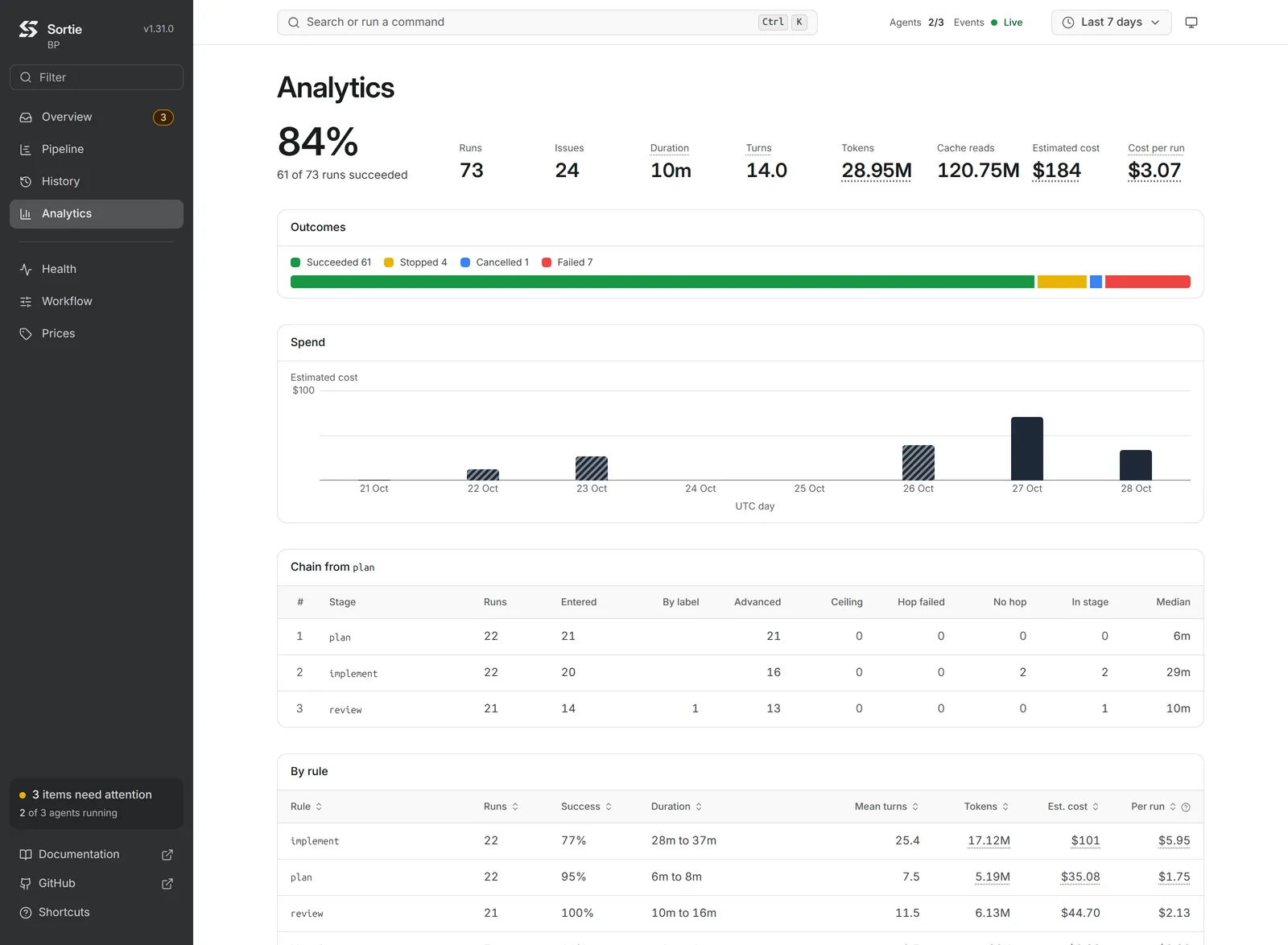
The summary opens with the success rate, large, and “N of M runs succeeded” under it. Beside it the figures run in one row.
| Figure | Shows |
|---|---|
| Runs | Finished runs. |
| Issues | Issues with a run in the range. |
| Duration | The median duration of succeeded runs. Shown once a run succeeded. |
| Turns | The mean turns per succeeded run. Shown once a run succeeded. |
| Tokens | Tokens without cache reads. Hovering the label says “every run measured” while every run in the range was measured in full. Otherwise the figure is a lower bound, cut and underlined, and hovering it reads “Some runs were not measured or not fully counted, so the real figure is higher.” With no run measured it reads “N/A”, with its reason on hover when there is one. |
| Cache reads | Cache read tokens, when there are any. |
| Estimated cost | The estimated cost. While it leaves out runs that are unpriced, have a partial cost, or have no token figure, it is a lower bound: cut and underlined, and hovering it reads “Some runs could not be fully priced or measured, so the real cost is higher.” A cost with no amount reads “unpriced”, with the hover “The configured rates leave these runs unpriced.”, or “N/A”, with its reason on hover when there is one. Shown when a rate source is available. |
| Cost per run | The estimated cost divided by the succeeded runs that reported usage, worded like Estimated cost. It reads “N/A” while no succeeded run has a token figure. Shown once a run succeeded, when a rate source is available. |
Outcomes is one bar that shows how the runs ended, with a legend and a count for each outcome that has runs: Succeeded, Stopped, Cancelled, and Failed. The bar’s segments carry no tooltip.
When a rate source is available, a Spend chart follows the bar for every range but Last 24 hours. It draws the estimated cost of the runs per UTC day for the 7, 30, and 90 day ranges and per UTC month for All time, one bar per period, oldest first. The first period is the one that holds the start of the range (for All time, the first run), so it can be a partial period. The top of the scale is the smallest 1, 2, or 5 times a power of ten that holds the largest period. A bar is solid while the period’s cost is complete. A period that leaves out runs that are unpriced, have a partial cost, or reported no usage draws a diagonal hatch, and a period whose runs have no cost at all but include such runs draws a thin hatched bar, so it never reads as a period without spend. A period without runs, and a period whose runs spent nothing, draws no bar. Hovering a period names it, gives the time the range starts from on a first period the range cuts short, and says in one sentence what the bar means. Every date and time on the chart is in UTC, whatever your time zone. The periods are those the daily and monthly spend ceilings count, so a bar compares directly with agent.max_daily_cost_usd and agent.max_monthly_cost_usd.
Each stage chain gets a table headed “Chain from” its entry rule, with a row per stage.
| Column | Counts |
|---|---|
| #, Stage | The stage’s place and rule name. |
| Runs | Finished runs of the rule, retries and pull request fixes included. |
| Entered | Passes through the stage, each counted once. |
| By label | Passes that arrived by a stage label a person put on the issue. |
| Advanced | Passes that hopped to the next stage. On the last stage, passes that moved to the handoff state. |
| Ceiling | Hops refused by dispatch.max_consecutive_hops. |
| Hop failed | Hops that could not add the next stage’s label. |
| No hop | Passes that ended without a hop being due. The tooltip names the reasons. |
| In stage | Passes whose run is going or retrying now. |
| Median | The median time spent in the stage. |
The breakdowns follow, each a table sortable by any column header, 20 rows at a time with Show more, and with the sort kept in the address.
| Table | Groups runs by | Shown |
|---|---|---|
| By rule | Dispatch rule | The workflow has rules and the range holds a group besides the default. |
| By model | Every model a run spent tokens on, with that model’s tokens and cost. A run that recorded no per-model spend falls under the model the agent reported, or the configured one when it reported none | It has a group. |
| By agent | Agent kind | It has a group. |
| By run status | Run status | It has a group. |
| By retry trigger | What caused a retry | It has a group. |
| Why runs started | What started a run: a poll, a retry, a stage hop, or a pull request reaction | It has a group. |
| By skill | Skill name | A run in the range called a skill, and the database records skill calls. It follows the other tables. |
Every table but By skill has the columns Runs, Success (Share in By run status), Duration (the median to the 95th percentile), Mean turns, Tokens, and, when a rate source is available, Est. cost and Per run, whose question mark explains that it covers succeeded runs only.
A run that used two models counts in both By model rows, so the rows’ runs can add up to more than the runs of the range. Per run is the cost divided by the group’s succeeded runs that reported usage, and reads “N/A” for a group with no succeeded run. The Tokens, Est. cost, and Per run cells are worded like the summary figures: a lower bound is cut and underlined, and a hover says what the figure leaves out or why it has none.
By skill has the columns Skill, Runs, Calls, and Failed calls. Runs counts the runs that called the skill, once each however often they called it, and the header’s hover says so. Calls counts every call, and Failed calls the calls that ended in a tool error, muted while it is 0. The table starts ordered by Runs, most first, then by skill name, and any column header sorts it. Runs recorded before Sortie kept skill calls have none on record, so while the range holds any, the three counts are lower bounds: each draws a dotted underline, and hovering it reads “At least this many. It leaves out runs Sortie recorded before it kept skill calls.” The warning above the figures also names the missing skill calls for a database written before Sortie recorded them. The same counts are the skill_calls member of the run statistics report.
Health
Health answers: is Sortie itself working? Checks lists one row per check, each with a mark, a sentence about the last result, and the error text when the check failed.
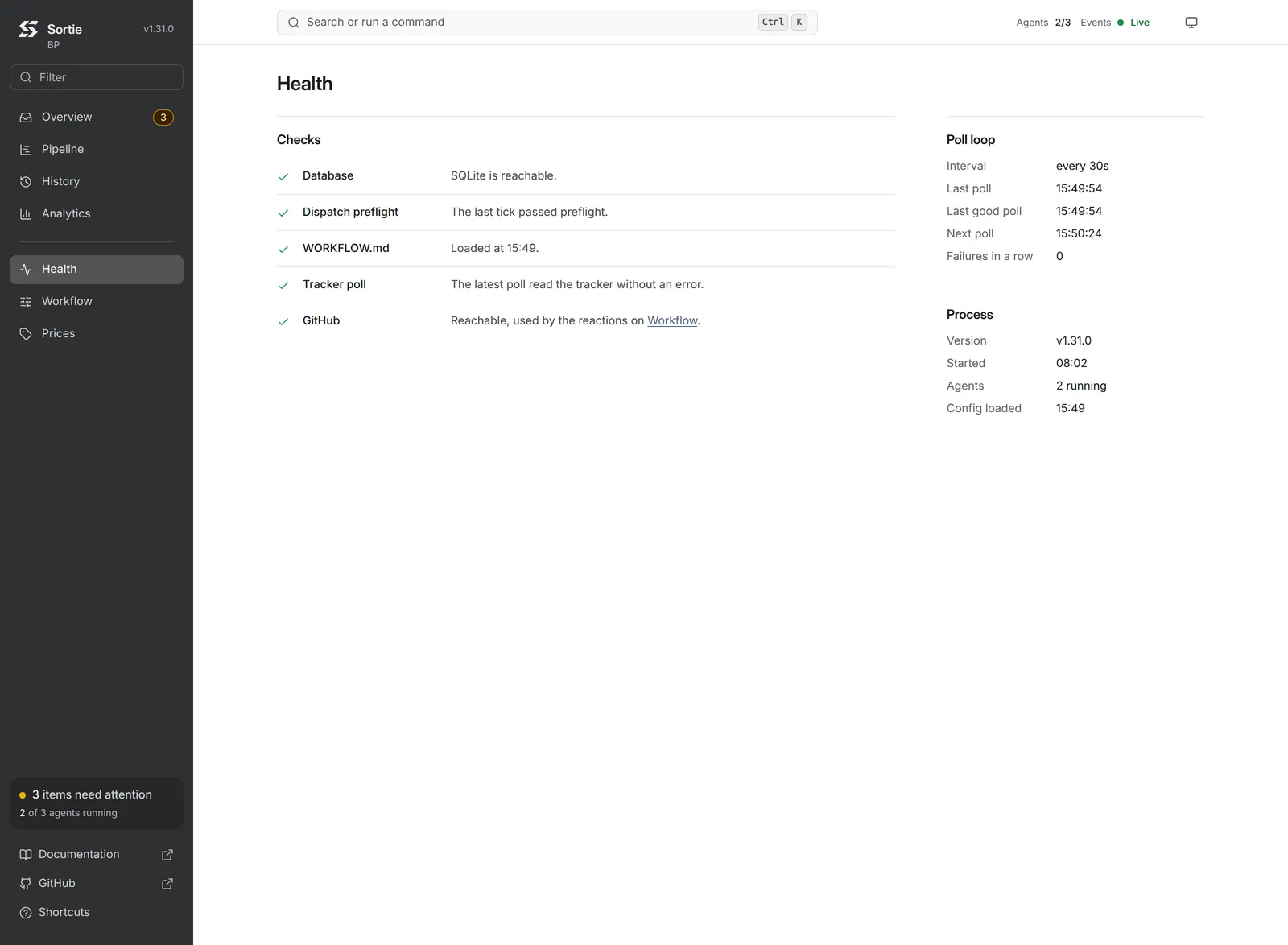
| Check | Reads |
|---|---|
| Database | Whether the SQLite state database is reachable. |
| Dispatch preflight | Whether the last poll tick passed preflight. While it fails, no new issue starts. |
| The WORKFLOW.md file, named as it is | When the file loaded last, or how many reloads in a row failed and which load is still in effect. |
| Tracker poll | The result of the last poll, in Sortie’s sentence. |
| GitHub, GitLab, or Gitea | Whether the provider is reachable. Shown when Sortie has a source control provider configured. |
A failing row reads, for example, “3 ticks in a row failed since 14:02; last success at 13:58.” A check that has not run yet reads “Not run yet.” Beside the checks, Poll loop gives the Interval, Last poll, Last good poll, Next poll, and Failures in a row, and Process gives the Version, when Sortie Started, how many Agents run, and when the Config loaded. A Sortie that serves no health data reads “Sortie serves no health checks.”
Workflow
Workflow answers: what configuration is Sortie running? It shows the WORKFLOW.md in effect, under a line that gives the time of the load (“Loaded at 15:34.”). When a newer edit failed to load, the line adds that no new issue starts until it does. A Sortie that serves no configuration reads “Sortie serves no configuration.”
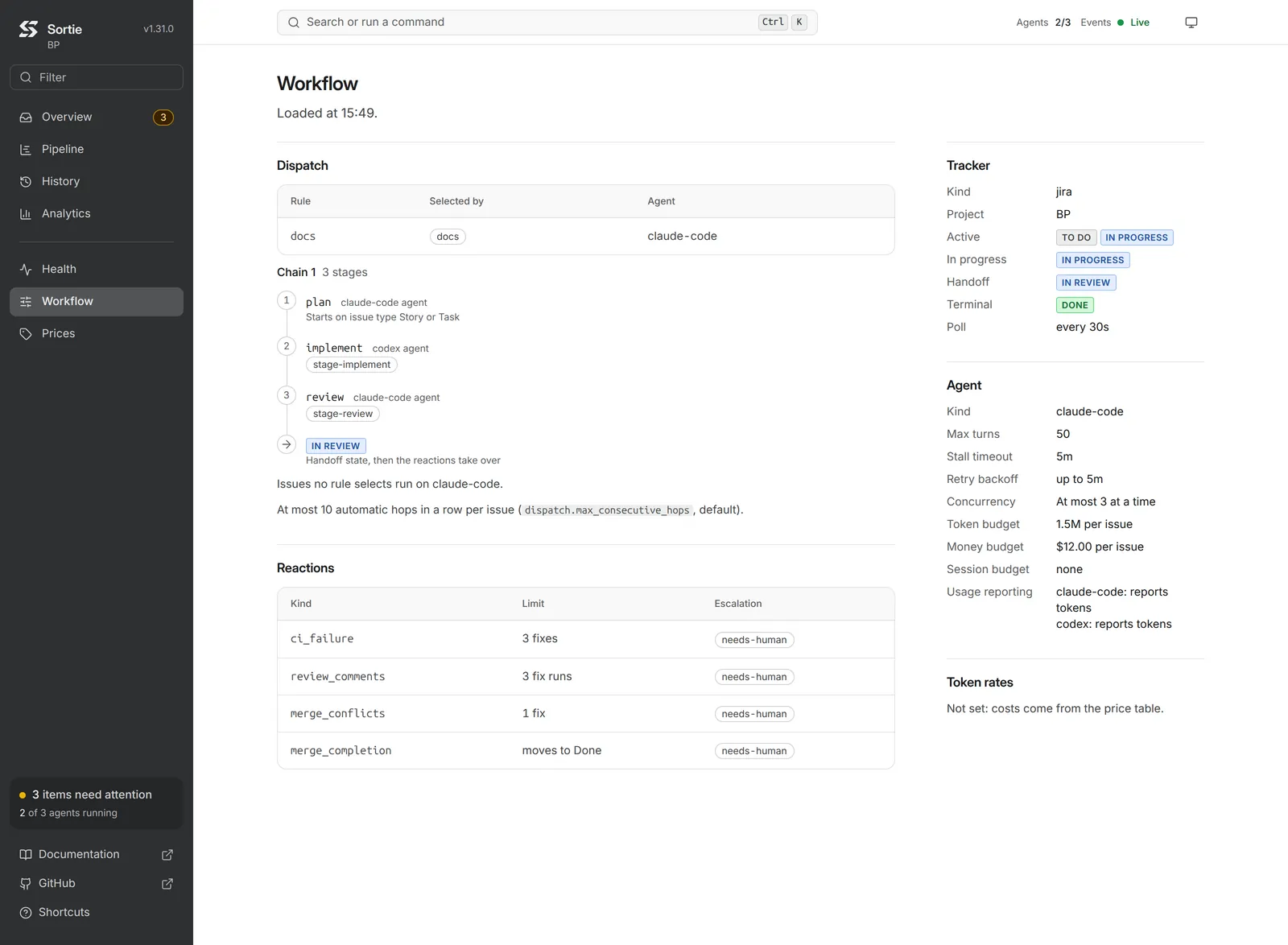
| Panel | Contents |
|---|---|
| Dispatch | Rules that belong to no chain, as a table of Rule, Selected by, and Agent. Each stage chain as a numbered list of stages with the agent each runs and how it is selected, ending on the handoff state or on the chain it joins. A line gives the limit on automatic hops in a row. Without rules the panel reads “No dispatch rules: every issue runs on” the agent kind. |
| Reactions | One row per configured reaction: Kind, Limit (fixes, fix runs, merge strategy, or target state), and Escalation. Without reactions it reads “No reactions: Sortie’s part ends at” the handoff state. |
| Tracker | Kind, Project while the workflow sets one, the Active, In progress, Handoff, No change, and Terminal states, and the Poll interval. Kind and Project name the tracker Sortie started with, so after an edit of WORKFLOW.md changes either one they keep the old value until Sortie restarts. |
| Agent | Kind, Max turns, Stall timeout, Retry backoff, Concurrency with any per-state limits, Token budget, Money budget, Session budget, Usage reporting for each agent kind in use, and SSH workers with their per-host limit. |
| Token rates | The rate of each token_rates entry, an agent kind or a model name, for Input, Output, Cache read, and Cache write, per million tokens. A kind entry without both Input and Output reads “Not priced without input_per_mtok and output_per_mtok.” Without token_rates the panel reads “Not set: costs come from the price table.” while a rate source is available, and “Not set: no cost is shown.” when none is. |
Usage reporting reads “reports tokens”, “reports none”, or “not declared” for each kind. See token_rates and the usage reporting table.
Prices
Prices answers: which rate prices each model, and where does it come from? It shows the rates in force, not a cost: the screen prices no run, and a finished run keeps the cost recorded when it finished. The panels state the price sources, and the Models table states the rates of each model. The screen reads GET /api/v1/prices.
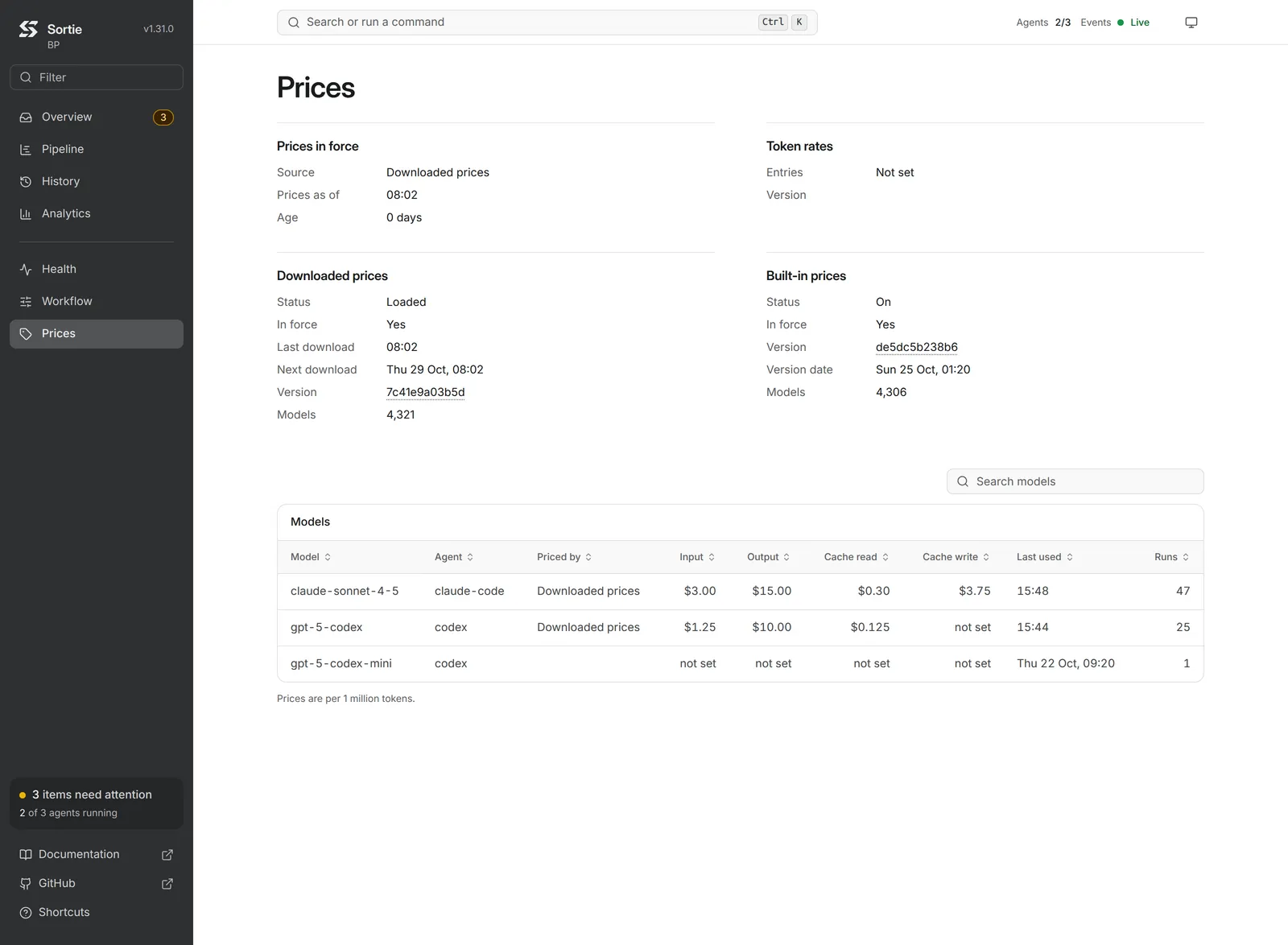
| Panel | Contents |
|---|---|
| Prices in force | Source, the highest-precedence price table in force (Custom prices, Downloaded prices, or Built-in prices, and “None” while no table is in force), Prices as of, the date of that table’s prices, and its Age in whole days. The screen applies no age limit and shows no warning. |
| Token rates | Entries, as “N kind entries” and “N model entries” for the token_rates entries in force, or “Not set”, and their Version. |
| Custom prices | The table named by price_table.replace_file or price_table.replace_url. Shown only while one of them is set. |
| Downloaded prices | The shared table Sortie downloads from price_table.fetch_url. |
| Built-in prices | The table built into the binary. |
A table panel gives its Status, whether the table is In force (“Yes” or “No”), its Version, and its Models. A downloaded table, which is Downloaded prices and Custom prices for an address, gives Last download and Next download. Custom prices for a file gives Loaded, the time this process first read the file’s current content. Built-in prices gives Version date, the date of its upstream revision, and no timing rows.
| Status | Means |
|---|---|
| Loaded | The source holds a table. The built-in table reads On. |
| Not loaded yet | The download has delivered no table and has not failed. The tables beneath it price runs. |
| Failing | The latest download try failed, or the latest load of WORKFLOW.md failed on price_table.replace_file. The panel adds Failures in a row while it is above zero, Last failure, and the Error. A table kept from an earlier download stays in force. |
Off by price_table.fetch or SORTIE_PRICE_TABLE_FETCH | The download is turned off, by the setting or by the environment variable. A source that is off never reads as failing. |
| Off | price_table.embedded is false. |
A Version shows its first 12 characters, after sha256: for a content digest, and the hover shows the whole value. Custom prices and Downloaded prices show digests, and Built-in prices shows the upstream revision.
Models lists one row per agent kind and model: every pair run history records, and every model the workflow configures, in the top-level agent settings, the dispatch default, or a dispatch rule. A model that only the workflow names has no last use and no runs. Rows keep the order the server serves, the latest use first, until a column is sorted.
| Column | Shows |
|---|---|
| Model | The model name, or “Model not reported” for a run that named none. |
| Agent | The agent kind. The same model under two kinds is two rows. |
| Priced by | The layer that supplies the rates: Kind entry, Model entry, Custom prices, Downloaded prices, or Built-in prices. A model entry that takes some rates from a table reads “Model entry and” the table, as in “Model entry and Downloaded prices”. Empty while no layer prices the model. |
| Input per 1M, Output per 1M, Cache read per 1M, Cache write per 1M | The rate in USD per million tokens, with at least two decimals. “not set” while no layer rates the class, which is never the same as $0.00, a rate that a layer sets to zero. A kind entry that leaves a cache rate unset reads “input rate (not set)”. When the classes of a row come from more than one layer, the hover of a rate names its layer. |
| Last used | When the latest recorded run of the model finished. |
| Runs | The recorded runs that used the model. |
Every column sorts, as the Analytics breakdowns do, and the choice is kept in the address. The Search models field above the table narrows the rows, as it is typed, to the models whose name contains the text, ignoring case; Esc or the clear button empties it, and while no row matches the table reads “No model matches this search.” The table scrolls sideways on a screen narrower than its columns.
Before the first answer the screen reads “Loading”. Without run history it reads “Run history is not available.”, and a failed read reads “Prices could not be read.”.
Attention items
An attention item is one thing that needs a person. Sortie derives the items from its own state, so an item exists exactly while its cause does. Each item has a reason, an explanation of why it exists, and a sentence on what clears it.
| Reason shown | Cause | Severity | Buttons | Clears when |
|---|---|---|---|---|
| “Parked: the agent needs a person” | The agent stopped because it cannot go on without a person, so Sortie parked the issue under a label. | Warning | Acknowledge, Open issue | A poll tick finds the label removed, or the issue left the state it was parked in. |
| “Parked: no evidence of work” | The issue’s runs ended without evidence of work as many times in a row as agent.max_consecutive_absences allows. | Warning | Acknowledge, Open issue | The same as above. |
| “Session budget reached”, “Token budget reached”, or “Money budget reached” | The issue used its agent.max_sessions, agent.max_tokens, or agent.max_cost_usd ceiling. The money item states the issue’s estimated cost against the limit, with “at least” before the cost while it is a lower bound. | Warning | Acknowledge | The ceiling is raised or removed (on the next poll tick), or the issue leaves the active tracker states. |
| “Daily spend ceiling reached”, “Weekly spend ceiling reached”, or “Monthly spend ceiling reached” | The instance’s estimated cost in the UTC day, week, or month reached agent.max_daily_cost_usd, agent.max_weekly_cost_usd, or agent.max_monthly_cost_usd, so Sortie starts no agent session for any issue while sessions already running finish. The item states the spend against the ceiling, with “at least” before the spend while it is a lower bound. It belongs to no issue. | Critical | Acknowledge | The UTC day, week (which ends at the start of Monday), or month ends, or the ceiling is raised above the spend or removed (on the next poll tick). Dispatch stays held until every reached window has cleared. |
| “CI escalated on #N”, “Review comments escalated on #N”, “Bot review escalated on #N”, “Merge conflict escalated on #N”, “Auto-merge escalated on #N”, “Merge completion escalated on #N” | A pull request reaction escalated. | Warning | Acknowledge, Open pull request #N (Open issue for merge completion) | The cause of the escalation is resolved, the pull request merges or closes, or the issue reaches a terminal state. The item’s text states the rest for its reaction. |
| “ | An edit of WORKFLOW.md did not load, so poll ticks dispatch nothing and the configuration that last loaded stays in effect. | Critical | Acknowledge | The file loads again. |
| “Dispatch preflight failed” | The preflight failed, so poll ticks dispatch nothing. | Critical | Acknowledge | A poll tick passes preflight. |
An item that has a tracker or pull request address gets a button that opens it in a new tab. Items without an issue, the two failing-check items at the end of the table, are not clickable and open no peek. Critical items sort first. Both critical causes are failing health checks, so the status card reads Degraded while the check keeps failing.
Acknowledge tells Sortie that a person has seen the item. The item leaves Needs attention and the count in the rail, the status card, the browser tab, and the headline. An acknowledged item does not disappear from view: the issue stays in Active, read as Held with its mark, and the issue page shows the item with the time it was acknowledged. Sortie stores the acknowledgement, so it survives a restart, and it ends together with its cause. An item that appears for a new cause, such as a second park of the same issue, is a new item and shows as unacknowledged.
Unread markers
The title of each Ended today row that has not been read is bold. Attention items carry no marker. An ending counts as read once its issue is shown in the peek or on its page. Mark everything read (Shift and U, or the palette) marks every ending loaded for today. Read state belongs to the browser, so another browser starts unread.
Actions
These actions change what Sortie does. Each answers with a short message at the bottom of the screen that states the answer Sortie gave, such as “Retry 7 of sortie-ai/sortie#1363 is due now.” When Sortie does not answer, the message reads “Sortie did not answer. Nothing changed.” During shutdown it reads that nothing was queued or acknowledged. The HTTP API documents the routes behind them.
| Action | Where it is offered | What it changes |
|---|---|---|
| Acknowledge | On every unacknowledged attention item: Overview, the peek, and the issue page. E acknowledges the selected item. | Records that a person saw the item, as described above. An item that cleared in the meantime reads “This item cleared before it was acknowledged.” See POST /api/v1/attention/{id}/acknowledge. |
| Retry now | On the issue page, in the Retry N panel of an issue that waits for a scheduled retry. It is disabled once the retry is due. | Makes the scheduled retry due at once instead of at its due time. The retry then goes through the same checks as a retry that came due by itself: a free slot under the concurrency limits, the issue’s session, token, and money budgets, and the issue’s tracker state. A retry that fails one of them is rescheduled or released as usual. See POST /api/v1/retries/{identifier}/run. |
| Check now | On the issue page, beside each watched reaction in the Pull request panel. | Moves the reaction’s next check to the next poll tick instead of its scheduled time, so the answer reads “queued for the next poll tick”. It does not run the check on the spot. See POST /api/v1/reactions/{identifier}/{kind}/check. |
Other commands act on Sortie as a whole: Refresh now and Pause live updates, described under live updates. The A key, Run the item’s action on the shortcut sheet, opens the item’s tracker or pull request address in a new tab, or acknowledges an item that has no address.
Live updates
The dashboard holds a connection to Sortie’s change stream. When Sortie reports a change, the dashboard rereads what the open screen shows. No timer reloads the page. History rereads at most once every 5 seconds and Analytics at most once every 30 seconds, however often changes arrive. Prices is the exception: it reads its route when it opens and when the browser window regains focus, and a change signal never rereads it, so a reload of WORKFLOW.md or a finished download shows after the screen is reopened or the window is focused again. A session view also receives the events of the session it shows over the same connection.
Refresh now (R, or the palette) asks Sortie to poll the tracker now, and the message reads “Tracker poll and reconciliation queued.” or says that a poll was already queued. Pause (P, the palette, or the live indicator) holds the screens still, and resuming applies what changed in the meantime. While paused, the title and icon of the tab stay as they were and a session view stops adding events.
The live indicator at the right of the top bar says how fresh the screen is. When several rows apply, the first one wins.
| Indicator | Means |
|---|---|
| Paused, “press P to resume” | Live updates are paused. |
| Holding still while you read | A peek is open over Overview or Pipeline, and the list holds still. |
| Reconnecting | The change stream is not open. The dashboard reopens it with growing delays of up to 30 seconds, and reopens it after 45 seconds of silence. |
| Not updating, “last update” with a time | The dashboard could not read Sortie’s state. |
| Poll failing, “next try” with a time | The stream is open, but the last tracker poll failed. |
| Live, “next poll in” a time | The stream is open and the last poll succeeded. The detail is absent when no poll is scheduled. |
When the version of the running Sortie differs from the version the open tab first saw, a message that stays until dismissed reads “Sortie” and the new version, then “is running. Reload to update the dashboard.”, with a Reload button.
How the screens follow the workflow
The dashboard shows only what the workflow configures. Every row below changes with the matching part of WORKFLOW.md.
| Configured | What the dashboard shows |
|---|---|
| No dispatch rules | No Rule menu, no Rule column or filter in History, no By rule table. Issues run on the default agent. |
| Dispatch rules | The Rule menu on Overview and Pipeline, the rule on each row and run, the Rule filter and column in History, and By rule in Analytics, which stays hidden while every run used the default. |
| Stage chains | The rule menu grouped by chain, the stage and its place on rows (“implement, 2 of 3”), the stage meter on lanes, the “stages done” legend entry, the stage summary and stage chapters on the issue page, the Hop to filter in History, one funnel table per chain in Analytics, and the chains in Workflow. |
| Pull request reactions | One station per reaction on Pipeline and the issue page, the Waiting on PR chip, the pull request chapters and the Pull request panel with Check now, escalations as attention items, and the Reactions panel in Workflow. Without reactions the lane ends at the handoff state. |
A rate source: the built-in price table, a downloaded or price_table.replace_file table, or token_rates | The Est. cost column in History and Analytics, the Estimated cost figure, the cost in run cards, the peek, the Budget and cost panel, and the Ended today tally. The built-in table is on by default, so these appear unless price_table.embedded is false and no price_table.replace_file, accepted download, or token_rates entry is in force. Then none of them appears, and the Est. cost row of a session view whose tokens were measured reads “unpriced”. Prices shows which of these sources is in force. |
| An agent kind that reports no token usage | “not measured” in place of the tokens of a running session, “N/A” in place of the tokens and cost of a finished run, “reports none” under Usage reporting in Workflow, and a Tokens line of “not measured” or “N/A” in the session view. |
agent.max_daily_cost_usd, agent.max_weekly_cost_usd, or agent.max_monthly_cost_usd | The Budget card in the Usage section of Overview and the spend ceiling attention items. |
agent.max_sessions, agent.max_tokens, or agent.max_cost_usd | The budget meters on the issue page, the budget attention items, and the Session budget, Token budget, and Money budget lines in Workflow. The Cost meter also needs a rate source. See how to control agent costs. |
How figures are written
Costs are estimates, built from the rates in force (token_rates entries over the price table), and the dashboard says so with the words “estimated”, “est.”, and “Estimated cost”. A finished run keeps the cost recorded when it finished, whatever the rates say now. Token figures leave out cache reads, which the dashboard shows separately where it has them. agent.max_tokens leaves them out too, so the budget meter reads Tokens and counts the same figure. The Cost meter counts them, because the estimated cost prices them. Durations use at most two units (“1h 17m”), and a duration under one second reads “< 1s”. Tokens read as “830K” or “48.03M”, costs read with two decimals below $100 and as whole dollars from $100, amounts in an agent’s own unit read with at most two decimals, and a share strictly between 0 and 100 percent never rounds to either end.
A figure Sortie does not have is never written as zero. A cost above zero and under one cent reads “under $0.01”, so only a cost of zero reads “$0.00”. How Sortie measures a run, and what makes a figure a lower bound, is explained in spend measurement.
Lower bounds and hints
A figure that carries a note is drawn with a dotted underline, and hovering or tapping it opens the note. A figure without a note has no underline and no hover. A figure that is a lower bound always carries a note. Its amount is cut, never rounded up, so the text never exceeds what it bounds: tokens drop the digits past the last one shown (1,699,999 reads “1.69M”), a cost below $100 keeps two decimals, from $100 drops the cents, and under one cent keeps its first non-zero digit ("$0.004"), and an amount in an agent’s own unit keeps at most two decimals. The dashboard writes no “at least” before such a figure; the underline and the note mark it.
| Figure | Note |
|---|---|
| Tokens of a finished run | “Some turns were not fully counted, so the real figure is higher. It will not be corrected later.” |
| Cost of a finished run | “Some turns were not fully counted, so the real cost is higher. It will not be corrected later.”, or, when a token class of the model had no price, “ |
| Cost of a running session | “Some turns were not fully counted, so the real cost is higher.” |
| A token total: the Ended today tally, a History header, Analytics, the Tokens budget meter, the peek | “Some runs were not measured or not fully counted, so the real figure is higher.” |
| A cost total: the same places, the Budget and cost panel, the Budget card, the Spend chart | “Some runs could not be fully priced or measured, so the real cost is higher.” |
| An amount in an agent’s own unit | “Some turns were not fully counted, so the real amount is higher. It will not be corrected later.” |
Other notes give the provenance of a complete figure: the tokens of a finished run say how Sortie measured it (“Measured from live protocol.”) and give its cache reads, and a cost that holds a US dollar amount the agent reported gives the exact cost and that share ("$4.20. $1.10 of it is the amount the agent reported for acme-coder-1, which no price table lists.").
N/A and its reason
A finished run, or a total of finished runs, with no token figure reads “N/A” for its tokens and its cost. The note gives the reason.
| Reason | Note |
|---|---|
| The run ended before the agent reported usage | “The run ended before the agent reported any usage. It will not be measured later, and nothing needs doing on your side.” |
| The agent sent no usage | “The agent sent no usage for this run. It will not be measured later, and nothing needs doing on your side.” |
| The agent reports spend only in its own unit | “The agent reports its spend only in credits, not in tokens. Nothing to do on your side.”, naming the units. The cost cell of such a run reads its amounts instead, such as “7.08 cr”. |
| The run was recorded before Sortie kept provenance | “Sortie recorded this run before it kept where a figure came from.” |
| A total over runs with different reasons | “These runs have no token figure, for more than one reason. Each session says why.” |
A total whose runs all share one reason carries the note only when that reason is the agent’s own unit; for any other shared reason it reads “N/A” with no note. A running session with no usage yet reads “not measured” instead.
Wording
| Wording | Means |
|---|---|
| “N/A” | A finished run or a total with no token figure, and the cost that depends on it. See N/A and its reason. The tally and the History header read “tokens N/A” and “cost N/A”. |
| “not measured” | A running session whose agent has reported no usage yet, and the Tokens fact of the peek for an issue with no token figure. It stands for a token figure and for a cost that depends on one. A share of the Budget and cost panel reads it when no run in it was measured. |
| “unpriced” | The tokens are known but no rate prices the model of a running session, or none did when a finished run was recorded. The hover of a finished run names the model: “No price table lists |
| “not recorded” | Sortie’s run history does not hold the figure, or has no value for it, as for Mean turns of a group with no turn count. The tally reads “tokens not recorded”. Measured from and Priced from in the session view read it, with the hover “Sortie recorded this run before it kept where a figure came from.”, for a run recorded before Sortie kept provenance. |
| “not reported” | The agent named no model, as in Reported model. In the budget panel, “No token budget: tokens not reported.” when no token budget is set, and “Tokens not reported.” when one is. |
| “every run measured” | A token total with no run left out and none counted in part. |
| “at least” | Only in Sortie’s own sentences: the budget and spend ceiling attention items, as in “The issue has used at least $12.40 of its budget of $25.00 in estimated cost”, the sentence of an issue held at its budget, and the hover of a lower-bound count in the By skill table. Figures elsewhere mark a lower bound with the underline. |
| “under $0.01” | A cost above zero that is smaller than one cent. |
| “unknown” | A time, duration, or cost the dashboard cannot state. |
Keyboard shortcuts and command palette
? opens the shortcut sheet, which lists the keys that act on the current screen. Keys are ignored while the cursor is in a text field and while Ctrl, Alt, or Cmd is held, except for the palette key. Keys that activate a focused button or link keep that job.
Global shortcuts
| Keys | Action |
|---|---|
R | Refresh now |
P | Pause or resume live updates |
Shift U | Mark everything read |
T | Next theme |
G, then O, P, H, A, E, W, or R | Go to Overview, Pipeline, History, Analytics, Health, Workflow, or Prices |
? | Keyboard shortcuts |
Ctrl K (Cmd K on macOS) | Command palette |
Esc | Close, go back |
The go-to sequence is G followed by the letter within 1.2 seconds. Esc closes the peek first. On an issue page it returns to the screen the page was opened from, and on a session view it returns to the issue page.
Overview shortcuts
| Keys | Action |
|---|---|
J, K (or Down, Up) | Select the next or previous item, across Needs attention, Active, and Ended today |
Space | Peek the selected issue |
Enter | Open the issue page |
O | Open the latest session |
A | Run the item’s action |
E | Acknowledge the item |
L | Switch to Pipeline |
Pipeline shortcuts
| Keys | Action |
|---|---|
J, K (or Down, Up) | Select the next or previous lane |
Space | Peek the selected issue |
Enter | Open the issue page |
O | Open the latest session |
A | Run the peeked issue’s action |
E | Acknowledge the peeked issue’s item |
L | Switch to Overview |
Issue page shortcuts
| Keys | Action |
|---|---|
O | Open the latest session |
“The latest session” is the running session when there is one, and otherwise the issue’s newest session. On Overview, A and E act on the selected item, or on the peeked issue’s item while a peek is open.
Command palette
Ctrl K or Cmd K opens the palette from any screen, and so do the Commands button in the rail, the Search or run a command button in the top bar, and the Menu button on narrow screens. It has a search field and lists the commands, each with its key.
| Command | Key |
|---|---|
| Go to each screen | G and the screen’s letter |
| Refresh now | R |
| Pause live updates or Resume live updates | P |
| Mark everything read | Shift U |
| Theme: System, Theme: Light, Theme: Dark | T |
| Keyboard shortcuts | ? |
Typing narrows the commands and adds the groups below. Issues lists active issues whose key or title contains the text (the first 8), then finished issues from run history that match by key or title (up to 5 more), each with its status word under the name. Sessions lists the live sessions of matching running issues, named “key live session”, and the finished sessions of the issues found, named “key session N” with the route, outcome word, and start time (up to 8 in all). Choosing an issue opens its page, and choosing a session opens its view. A search with no match reads “Nothing matches” and the text, and a failed history lookup reads “Run history could not be read.”
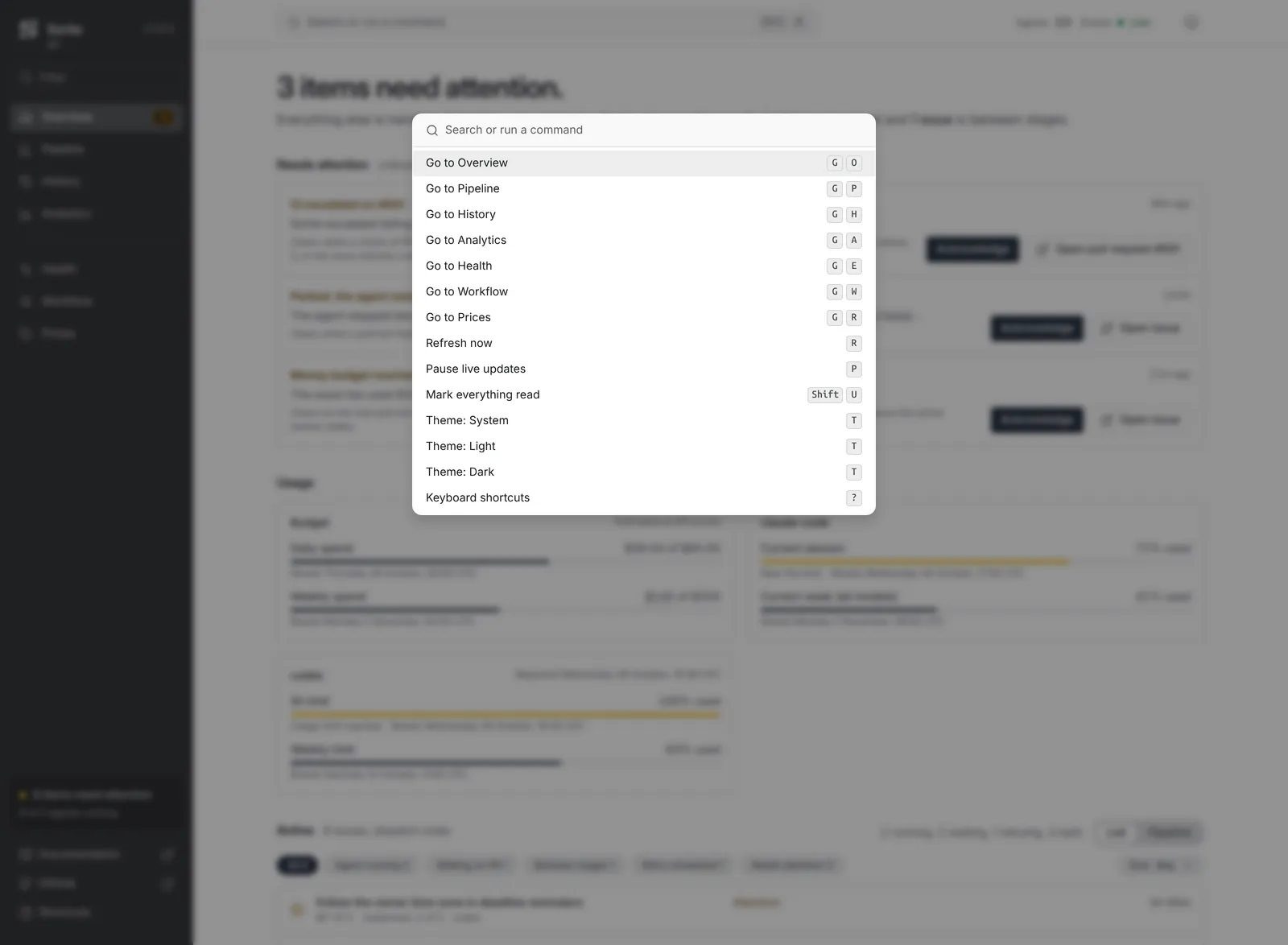
Was this page helpful?